Is your Android phone running slower than usual, or are certain apps acting up? Over time, every app stores temporary files [known as cache] to speed up loading. While this can make your device feel snappy at first, cached data can pile up, take valuable storage space, and even cause glitches.
Clearing cache is quick, safe, and can instantly improve performance without deleting your personal files. In this complete guide, you’ll learn exactly how to clear cache on any Android device — from Samsung’s One UI and Google Pixel’s stock Android to Xiaomi’s MIUI, Huawei’s EMUI, and more.
Beyond performance, cache plays a role in how your phone manages resources. When it becomes outdated or corrupted, it can slow down apps, cause crashes, or prevent updates from working properly. That’s why knowing how and when to clear it is an essential bit of Android maintenance.
Table of Contents
📌 Why Clearing Cache Matters
Your Android phone stores temporary data (called cache) to make apps and websites load faster. Over time, this data can:
Take up valuable storage space
Become outdated or corrupted
Cause apps to misbehave or slow down your device
Clear cache is like giving your phone a quick tune‑up, it won’t delete your personal files, but it can free up space and fix glitches.
Extra: Use “Optimizer” app → Clean Up → Cache Files.
🌐 Clearing Browser Cache
Chrome on Android
Open Chrome
Tap ⋮ (menu) → History → Clear browsing data
Select Cached images and files → Clear data
Firefox on Android
Open Firefox
Tap ⋮ (menu) → Settings
Scroll to Delete browsing data
Select Cached images and files (and any other data you want to remove)
Tap Delete browsing data
Samsung Internet on Android
Open Samsung Internet
Tap ☰ (menu) → Settings
Tap Personal Browsing Data → Delete browsing data
Select Cached images and files (and other items if desired)
Tap Delete data → Delete to confirm
Microsoft Edge on Android
Open Microsoft Edge
Tap ⋮ (menu) → Settings
Go to Privacy and security → Clear browsing data
Select Cached images and files (and any other items you want to clear)
Choose a Time range (e.g., All time) → Clear data
Opera on Android
Open Opera
Tap Easy Setup (radio dial icon) or ☰ (menu) → Settings
Scroll to Privacy & Security → Clear browsing data
Select Cached images and files (and any other data you want to remove)
Choose a Time range → Clear data
Brave on Android
Open Brave
Tap ⋮ (menu) → Settings
Go to Privacy and security → Clear browsing data
Select Cached images and files (and any other items you want to clear)
Choose a Time range (e.g., All time) → Clear data
⚠️ Clearing System Cache (Advanced)
On some older devices (pre‑Android 10), you can wipe the system cache partition via Recovery Mode:
Power off the phone
Hold Power + Volume Up (or brand‑specific combo) to enter Recovery
Select Wipe cache partition (navigation via volume keys)
Reboot
Note: Many modern devices no longer use a separate system cache partition.
💡 Pro Tips
Frequency: Once every 1–2 months for heavy users, or when apps misbehave.
Don’t Overdo It: Cache helps speed things up, clearing too often can slow initial app loads.
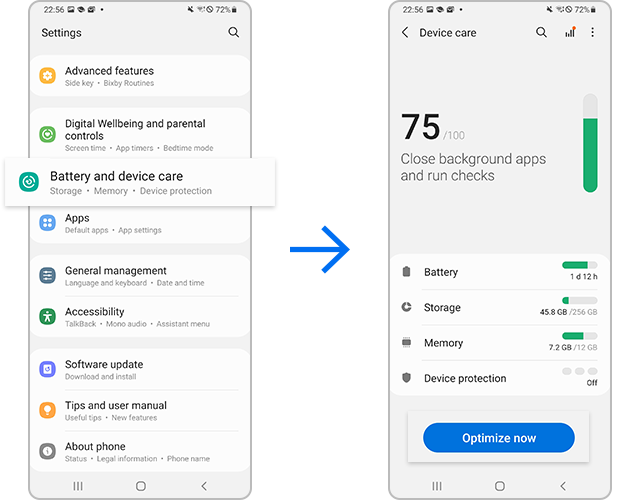
Bulk Cleaning: Use built‑in optimization tools (Samsung Device Care, Xiaomi Cleaner, Google Files “Clean” tab).
❔ Frequently Asked Questions
Does clearing cache delete my data?
No. Clearing cache only removes temporary files stored by apps or the system. It does not delete your personal data, login credentials, settings, or app progress.
How often should I clear cache on Android?
Clear cache when your phone feels slow, storage is running low, or apps start glitching. Otherwise, there’s usually no need to do it regularly.
Will clearing cache speed up my Android phone?
Yes, in many cases. Removing outdated or corrupted cache can free up storage and resolve performance issues, making your phone feel faster.
✅ Final Thoughts
Clearing cache on Android is a quick, safe way to reclaim storage and fix performance hiccups. Whether you’re on a Samsung Galaxy with One UI, a Pixel with stock Android, or a Xiaomi with MIUI, the process is straightforward once you know where to look.




2 Comments
Updata whatsapp farbary 10,2026
Ok